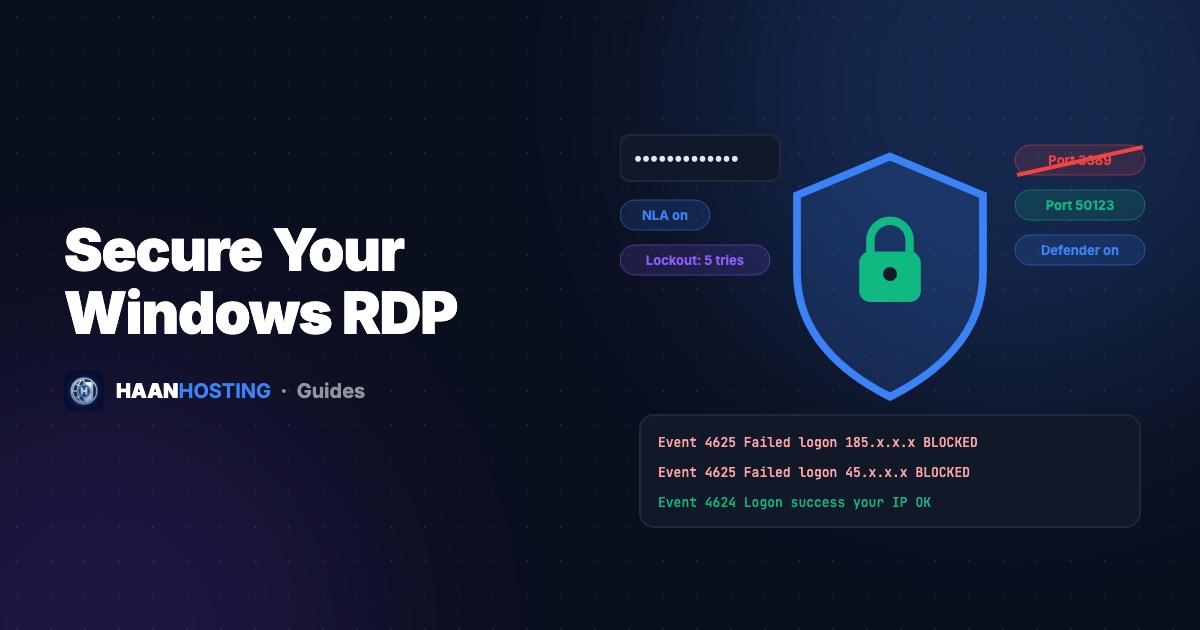
Any server with Remote Desktop exposed to the internet will start receiving automated login attempts within hours. Most attacks are simple password guessing, which means most of them can be blocked with a few settings. Follow these 12 steps to harden your Windows RDP or VPS. They take about 30 minutes and protect your data, your accounts and your server's IP reputation.
1. Use a long, unique administrator password
This is the single most important step. Use at least 14 characters, ideally a passphrase from a password manager. Never reuse a password you use elsewhere. Change it with Ctrl + Alt + End → Change a password.
2. Create a separate admin user and disable "Administrator"
Bots almost always try the username Administrator. Create your own admin account with an unusual name, confirm you can log in with it, then disable the built-in one:
# PowerShell (Run as Administrator)
$pw = Read-Host -AsSecureString "New password"
New-LocalUser -Name "haan_ops" -Password $pw
Add-LocalGroupMember -Group "Administrators" -Member "haan_ops"
Add-LocalGroupMember -Group "Remote Desktop Users" -Member "haan_ops"

# Log in as haan_ops in a NEW session first, then:
Disable-LocalUser -Name "Administrator"3. Enable an account lockout policy
Lockout stops brute-force attacks by temporarily blocking an account after repeated failures. Open secpol.msc → Account Policies → Account Lockout Policy and set a threshold of about 5–10 invalid attempts, with a 15–30 minute lockout. Or from an admin command prompt:
net accounts /lockoutthreshold:5 /lockoutduration:30 /lockoutwindow:304. Keep Network Level Authentication (NLA) on
NLA requires users to authenticate before a full remote session is created, which reduces exposure to attacks. Check it in System Properties → Remote: "Allow connections only from computers running Remote Desktop with Network Level Authentication" should be ticked.
5. Change the default RDP port
Changing port 3389 doesn't make your server "secure", but it dramatically cuts the noise from automated scanners. Pick a port between 10000 and 65000:
# PowerShell (Run as Administrator) - example uses port 50123
$port = 50123
Set-ItemProperty -Path 'HKLM:\SYSTEM\CurrentControlSet\Control\Terminal Server\WinStations\RDP-Tcp' -Name PortNumber -Value $port
New-NetFirewallRule -DisplayName "RDP Custom TCP" -Direction Inbound -Protocol TCP -LocalPort $port -Action Allow
New-NetFirewallRule -DisplayName "RDP Custom UDP" -Direction Inbound -Protocol UDP -LocalPort $port -Action Allow
Restart-Service TermService -Force
Then connect with your-ip:50123. Keep your current session open until you've confirmed the new port works. If anything goes wrong, use the VNC/console in your client area or contact support.
6. Restrict RDP to your IP address (if it's static)
If your office or home has a fixed IP, allow RDP only from it. In Windows Defender Firewall with Advanced Security, open your RDP inbound rule → Scope → Remote IP address and add your IP. This blocks almost every attack outright.
7. Install Windows updates promptly
RDP has had serious vulnerabilities in the past, such as BlueKeep (CVE-2019-0708), that let attackers in without a password on unpatched systems. Keep automatic updates on, and use Active Hours to control when restarts happen.
8. Keep Microsoft Defender enabled
Defender is built into Windows Server and is good enough for most servers. Don't disable it to "save resources". Add exclusions only for specific folders that need them (for example, a trading terminal's data folder).
9. Only install software from official sources
"Cracked" SEO tools, bots and EAs are one of the most common ways servers get infected. Download installers from vendors' official websites only.
10. Monitor failed login attempts
Open Event Viewer → Windows Logs → Security and filter by Event ID 4625 (failed logon). Thousands of entries mean you're being brute-forced, so apply steps 3, 5 and 6. Event ID 4624 shows successful logins, which you should check for any you don't recognize.
# Show the 20 most recent failed RDP login attempts
Get-WinEvent -FilterHashtable @{LogName='Security'; Id=4625} -MaxEvents 20 |
  Select-Object TimeCreated, @{n='User';e={$_.Properties[5].Value}}, @{n='SourceIP';e={$_.Properties[19].Value}}
Also worried about traffic floods? Read how VPS DDoS protection works.
11. Back up regularly
Keep copies of important files, settings and EA folders off the server (cloud storage or your own PC). If something goes wrong, you can reinstall and be back online in minutes.
12. Don't share credentials. Create users instead
If a team member or VA needs access, create a separate standard user for them instead of sharing the admin password. You can remove their access at any time without changing everything.
RDP security checklist
- Strong, unique password (14+ characters)
- Built-in "Administrator" disabled, custom admin user created
- Account lockout policy enabled
- Network Level Authentication on
- Custom RDP port and matching firewall rules
- RDP restricted to trusted IPs where possible
- Windows Update and Microsoft Defender enabled
- Software from official sources only
- Failed-login events (4625) reviewed periodically
- Off-server backups of important data
Running a slow server after hardening? See 12 tweaks to speed up your RDP. Still choosing a provider? Make sure it isn't a hacked "cheap RDP".
Secure infrastructure from day one
HAAN HOSTING Windows RDP and VPS include always-on DDoS protection, KVM isolation and 24/7 support to help you harden your server.
Explore RDP plansFrequently Asked Questions
No. A custom port reduces automated scanning noise, but you also need a strong password, an account lockout policy, NLA, updates and ideally IP-restricted firewall rules.
Open Event Viewer → Windows Logs → Security and filter by Event ID 4625 (failed logon). Event ID 4624 shows successful logons.
Yes, after creating and testing your own admin account. Bots almost always target the username "Administrator".
Written by Security Team
The HAAN HOSTING team deploys and supports VPS, Windows RDP and web hosting servers for customers in 20+ countries. Our guides are based on the questions we answer every day in support.