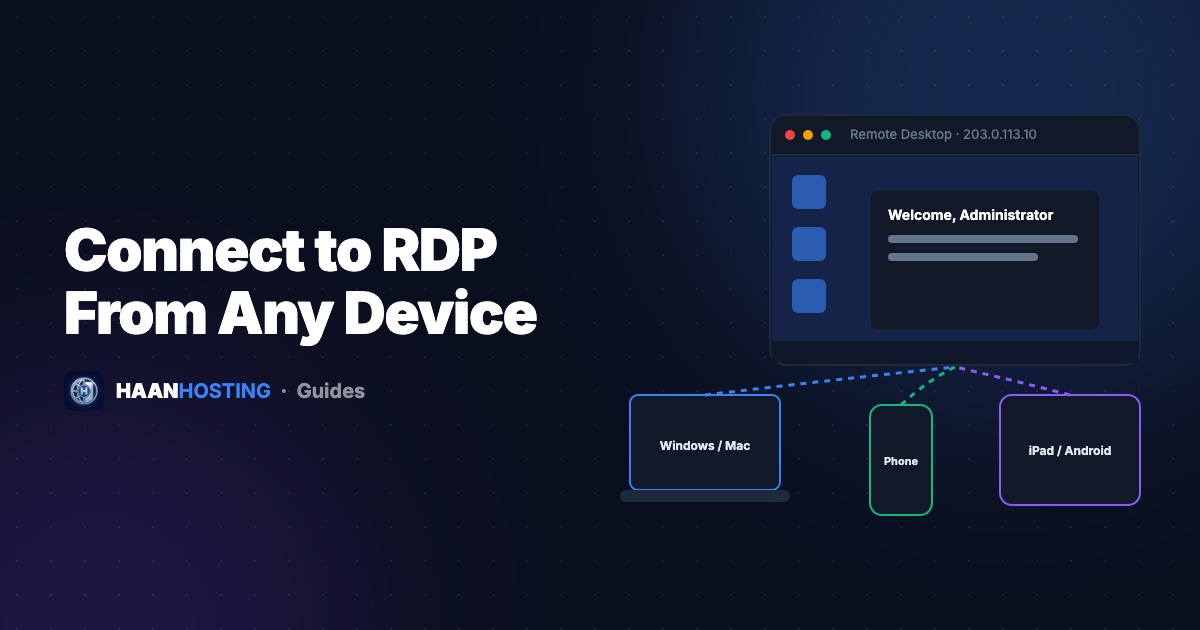
You've bought a Windows RDP or VPS and received an IP address, a username and a password. Now what? This step-by-step guide shows you how to connect to your remote desktop from Windows, macOS, Android, iPhone/iPad and Linux. It also covers how to fix the most common connection errors.
What you need before you start
- Server IP address (and port, if it isn't the default 3389), for example
203.0.113.10:3389 - Username, usually
Administrator - Password from your welcome email or client area
How to connect to RDP from Windows 10 / 11
Windows has a Remote Desktop client built in, so you don't need to install anything.
- Press
Win + R, typemstscand press Enter (or search "Remote Desktop Connection" in the Start menu). - In Computer, enter your server IP. If you use a custom port, add it after a colon:
203.0.113.10:50123. - Click Show Options, enter
Administratoras the user name and tick "Allow me to save credentials" if you like. - Click Connect, enter your password, and accept the certificate warning (this is normal for a new server).
Tip: Click Save As on the General tab to create a .rdp shortcut on your desktop for one-click access.
How to connect to RDP from a Mac
- Install Windows App (Microsoft's official client, formerly "Microsoft Remote Desktop") from the Mac App Store.
- Open it, click + → Add PC.
- Enter the server IP (with
:portif needed) as the PC name. - Under Credentials, add your username and password, then save.
- Double-click the PC tile to connect, and click Continue on the certificate prompt.
How to connect to RDP from Android
- Install Windows App (or "Remote Desktop" by Microsoft, depending on your region) from Google Play.
- Tap + → Add PC, enter the IP address and your user account.
- Tap the saved PC to connect. Use the on-screen keyboard and mouse pointer from the top toolbar.
How to connect to RDP from iPhone / iPad
- Download Windows App from the App Store.
- Tap + → Add PC, enter the IP address, and add your user account.
- Tap the PC to connect. On iPad, a Bluetooth keyboard and mouse make it feel like a laptop.
How to connect to RDP from Linux
Use Remmina (preinstalled on many Ubuntu desktops). Choose the RDP protocol, enter the IP, username and password, and connect. From a terminal you can also use FreeRDP:
xfreerdp /v:203.0.113.10:3389 /u:Administrator /dynamic-resolutionDisconnect vs sign out: an important difference
| Action | What happens | Use when |
|---|---|---|
| Close the window (X) / Disconnect | Your session and apps keep running on the server | Bots, MT4/MT5, downloads, SEO tools running 24/7 |
| Start → Sign out | All your apps are closed | You're done and want to free up resources |
| Restart | The server reboots (about 1–3 minutes) | After updates or if something is stuck |
Need to move files onto your server? Here are 5 ways to transfer files to RDP.
Fixing common RDP connection errors
"Remote Desktop can't connect to the remote computer"
- Double-check the IP and port. A missing
:portis the most common mistake. - Make sure the server is running in your client area. Try a reboot from there.
- Some office, school and public Wi-Fi networks block RDP ports. Try mobile data to test.
"The credentials did not work"
- Type the password manually instead of pasting it, since a trailing space breaks copy-paste.
- Use
Administratoror.\Administratoras the username. - After several failed attempts, the account may be temporarily locked. Wait a few minutes.
"An authentication error has occurred / CredSSP"
Update Windows on your own computer. Old clients can fail to negotiate Network Level Authentication with updated servers.
The connection is slow or laggy
See our guide on making Windows RDP faster: 12 tweaks that fix most lag.
Don't have an RDP yet?
Get a Windows RDP with full admin access, delivered within minutes, in the USA, UK or Singapore.
Browse RDP plansFrequently Asked Questions
Use Windows App (formerly Microsoft Remote Desktop), the official free client from Microsoft, available on the Mac App Store.
The default Remote Desktop port is 3389. If your server uses a custom port, add it after the IP with a colon, for example 203.0.113.10:50123.
Yes, if you close the window or disconnect. Your session stays active. Choosing "Sign out" closes all your programs.
Written by Support Team
The HAAN HOSTING team deploys and supports VPS, Windows RDP and web hosting servers for customers in 20+ countries. Our guides are based on the questions we answer every day in support.